SketchUp AI Render Not Working? Fixes for 2026
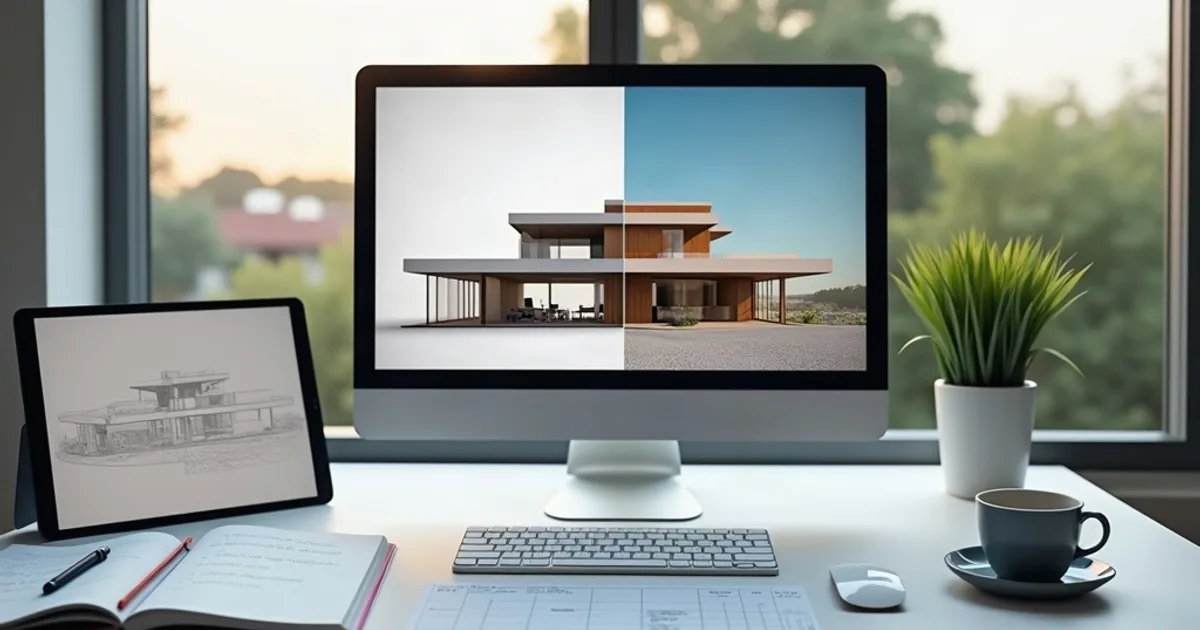
Your SketchUp AI render came back blurry, the materials are wrong, or the whole thing looks like a different building. This is the troubleshooting guide: the specific export mistakes that break a SketchUp-to-AI render, and the exact fix for each one.
- Most bad SketchUp AI renders trace back to the export screenshot, not the AI model or the prompt.
- Shadows off, low resolution, and Wireframe/Hidden Line styles are the three most common causes of a broken render.
- Vague prompts ("modern," "cozy") produce generic output even from a perfect screenshot — name real materials instead.
- Fixing one variable at a time (camera OR prompt, never both) is the fastest way to isolate what actually broke the render.
Why this matters
If you've already run a SketchUp screenshot through an AI renderer like PromptRender and the result didn't match your model, the instinct is usually to blame the AI. In practice, the AI model can only work with what's in the screenshot and the prompt — nearly every broken render traces back to one of a handful of fixable input mistakes. This guide is a diagnostic pass through those failure modes, not another basic intro tutorial.
What you'll need
- The original SketchUp file the bad render came from
- The exact screenshot you uploaded (check its resolution and file size)
- The prompt text you used to generate the render
- A PromptRender account with enough credits for one render (4 credits) to test the fix
The steps
1. Check the screenshot resolution first
Open the screenshot you uploaded and check its pixel dimensions. Anything under 1280x720 is very likely the cause of a blurry, low-detail, or over-simplified render — the AI has fewer pixels to preserve detail from. Re-export from SketchUp at 1920x1080 or higher using View > Animation > Export or a full-screen screenshot with the toolbar hidden.
2. Confirm shadows were on in the SketchUp view
Open SketchUp's Shadows dialog (Window > Shadows) and check whether it was enabled when you captured the screenshot. A flat, shadowless SketchUp view is the single most common cause of a flat, shadowless AI render — the model has no depth or light-direction cues to work from. Turn shadows on, pick a time of day that matches your intended render, and re-export.
3. Verify the SketchUp style wasn't Wireframe or Hidden Line
Check the Styles panel for the view you exported. If it was set to Wireframe, Hidden Line, or Monochrome, the AI only received outlines and no surface or material information — this is what produces a render that looks like a completely different, generic building. Switch to Shaded With Textures before re-exporting.
4. Re-read your prompt for vague language
Go back to the prompt you used and look for adjectives instead of materials — words like "modern," "cozy," "nice," or "clean." These give the AI nothing concrete to render, so it defaults to generic choices that often don't match your model's actual design intent. Rewrite it naming real materials ("white oak flooring," "black steel window frames") and a specific light condition ("late afternoon, warm light, long shadows").
5. Check for extreme camera angles or lens distortion
Look at the SketchUp camera you used — an extreme wide-angle Field of View (above roughly 60°) or a top-down axonometric view distorts proportions in a way that confuses the AI's read on scale and geometry. Reset the FOV to something closer to 35-50mm equivalent and reframe at a human eye-level or slightly elevated angle.
6. Isolate the fix by changing one thing at a time
If you're not sure whether the problem was the screenshot or the prompt, fix only one and regenerate. Changing the camera angle and rewriting the prompt in the same pass makes it impossible to tell which change actually solved the issue — and burns a render credit without a clear answer.
7. Regenerate and compare against the original model
Run the corrected screenshot and prompt through PromptRender again and hold the result next to your original SketchUp view. Check window count, roofline, and proportions match before judging the materials or lighting.
Troubleshooting
- Render looks like a different building entirely. The SketchUp style was Wireframe or Hidden Line. Switch to Shaded With Textures and re-export.
- Everything looks flat with no shadows or depth. Shadows were off in the SketchUp Shadows dialog before capture. Turn them on and re-export.
- Materials came out generic or wrong. The prompt used mood words instead of material names. Rewrite it naming the exact material and finish.
- Image is blurry or soft even up close. Screenshot resolution was under 1280x720. Re-export at 1920x1080 or higher.
- Proportions look stretched or warped. The SketchUp camera FOV was set too wide, or the view was a top-down axonometric. Reset FOV and use an eye-level camera.
- The render changed after a small prompt edit and now nothing matches. You changed camera and prompt together. Revert one variable and test again.
Tools and resources
- SketchUp's Shadows dialog and Styles panel for checking export settings before you capture
- View > Animation > Export or a full-screen screenshot tool for high-resolution captures
- PromptRender for the AI render generation and regeneration step
- The original SketchUp file, kept on hand to compare proportions against the finished render
What to do next
If you're setting up a SketchUp AI render workflow from scratch rather than fixing a broken one, the SketchUp render guide covers the basic upload-describe-generate steps in order.
FAQ
Why does my SketchUp AI render look nothing like my model? This almost always traces back to the export style — Wireframe or Hidden Line views strip out the surface information the AI needs, so it defaults to a generic building shape instead of your actual design.
Why is my SketchUp AI render blurry? The source screenshot resolution was too low. Re-export at 1920x1080 or higher directly from SketchUp rather than a small screen-grab.
Why are the materials in my render wrong? The prompt likely used vague mood language ("modern," "warm") instead of naming actual materials. Be specific: name the flooring, wall finish, and window frame material and color.
Why does my render look flat with no shadows? Shadows were turned off in SketchUp's Shadows dialog before you captured the screenshot. The AI uses shadow direction in the source image as a lighting cue.
Can a bad camera angle in SketchUp ruin the AI render? Yes — an extreme wide-angle field of view or a top-down axonometric view distorts scale and confuses the AI's geometry read. Use an eye-level or slightly elevated perspective instead.
Should I change my prompt and my SketchUp export at the same time to fix a bad render? No — change one variable per regeneration so you can tell which fix actually worked.
How many render credits does it usually take to fix a bad render? Most fixes resolve in one to two regenerations once the actual cause (screenshot or prompt) is correctly identified.
Does this troubleshooting process apply to other 3D software besides SketchUp? Yes — the same failure modes (low resolution, wireframe exports, vague prompts, distorted camera angles) apply to Revit, Rhino, Blender, and ArchiCAD screenshots as well.
One last thing
Before assuming the AI got it wrong, check the screenshot first. In most cases, the fix isn't a better prompt — it's a cleaner, higher-resolution, shadow-lit export straight out of SketchUp.