AI renders for every space
From living rooms to kitchens, generate photorealistic renders from any 3D model screenshot in seconds.
Every use case here runs the same way: a screenshot of your 3D model of the space, uploaded once, comes back as a photorealistic render. What changes between a kitchen, a living room, and an attic conversion is not the workflow. It is which details the render has to get right, and the prompt you write to steer it.
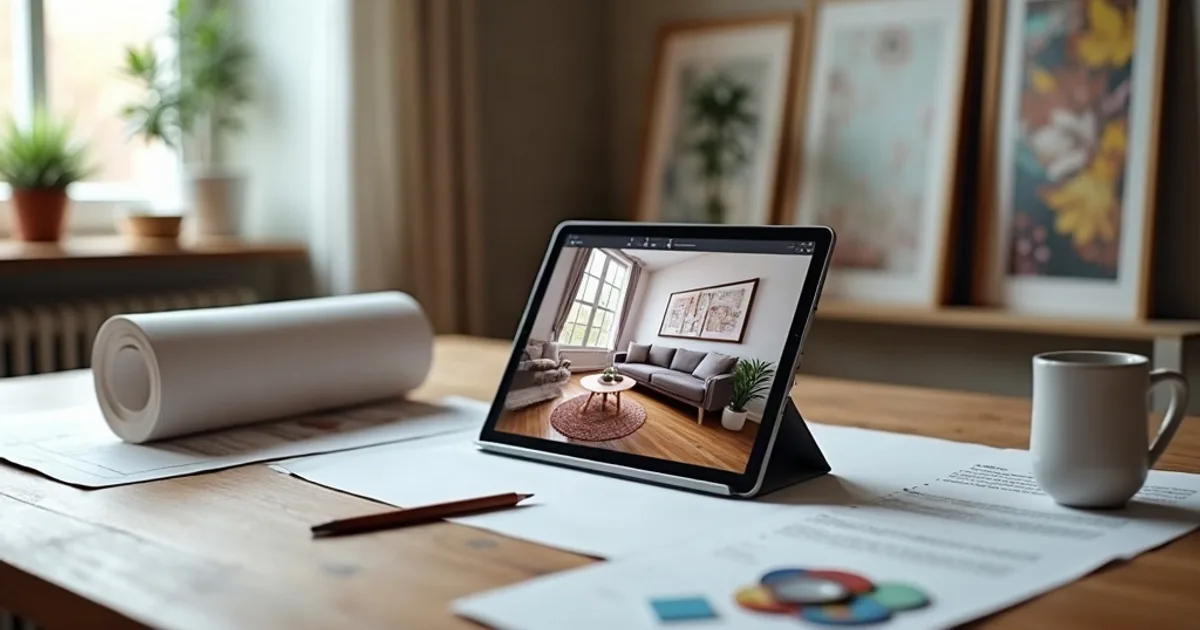
Interior Design
Generate photorealistic renders of any interior space: living rooms, bedrooms, open-plan areas, and more. Works with any 3D software.
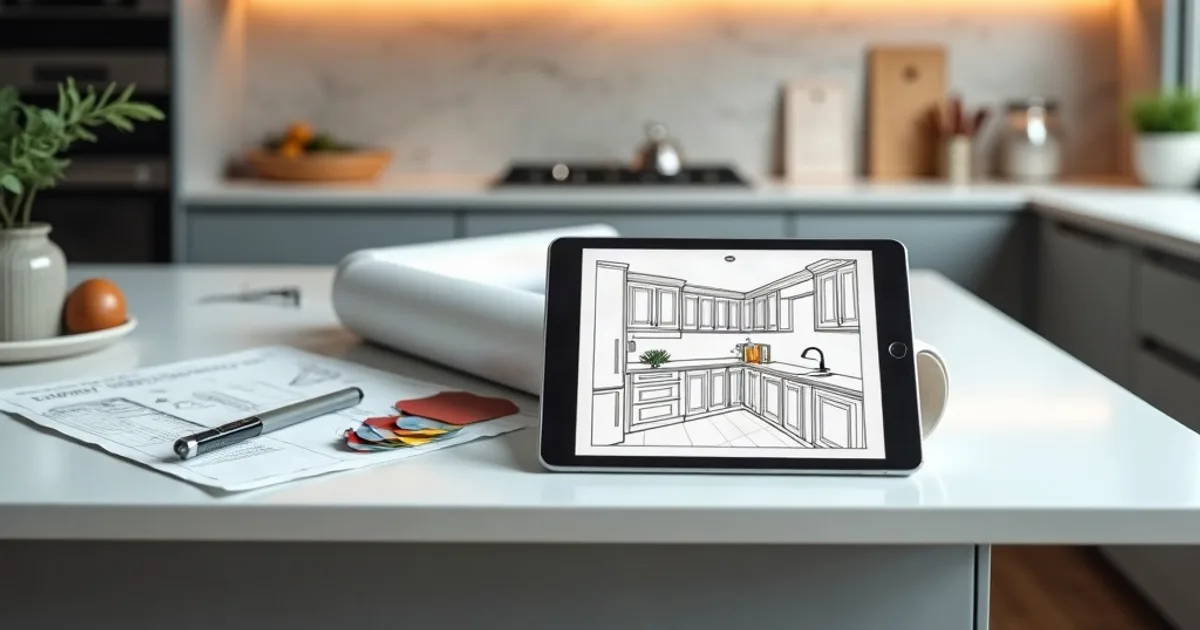
Kitchen Design
Showcase cabinet finishes, countertop materials, and appliance details with stunning photorealistic kitchen renders.
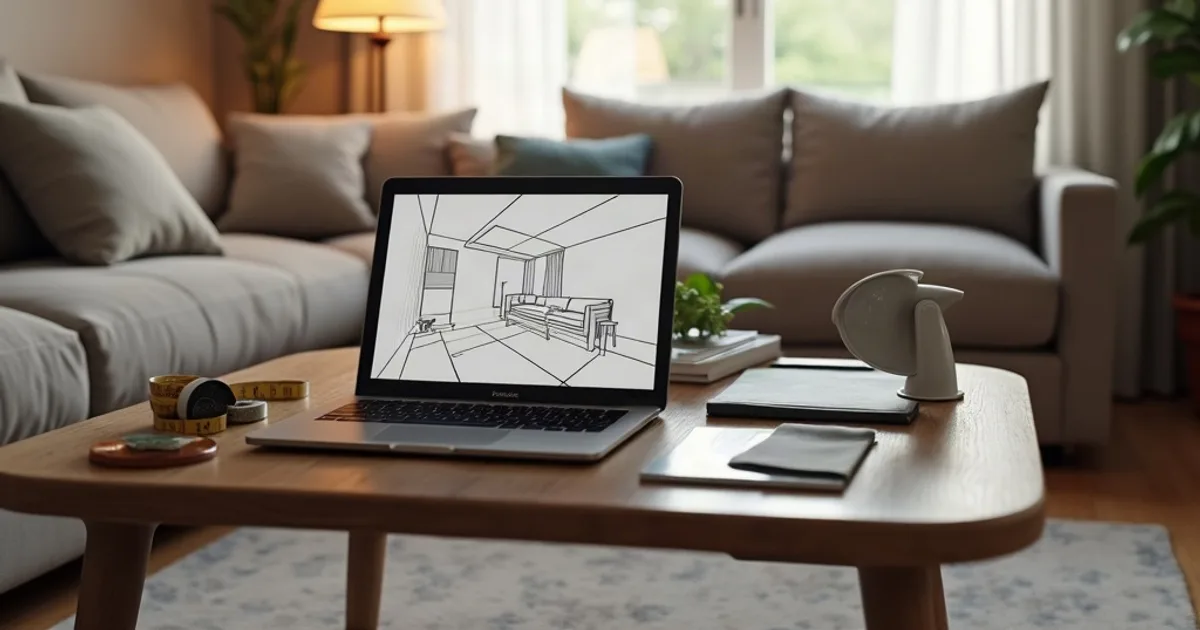
Living Room
Bring furniture layouts, natural lighting, and material choices to life with AI-powered living room renders.
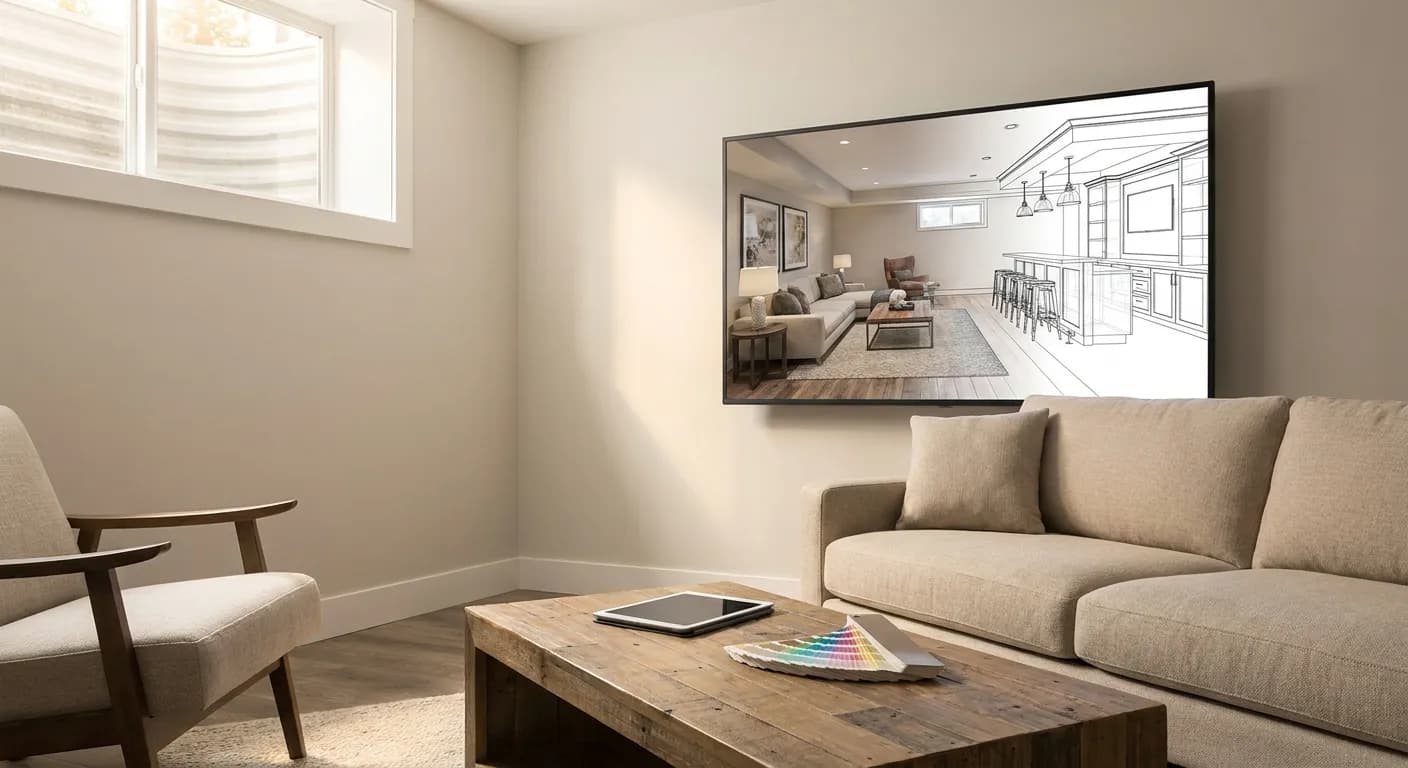
Basement Renovation
Generate photorealistic basement renovation concepts from a model screenshot or sketch.

Movie Theater & Cinema
Create photorealistic auditorium, lobby, concession, and cinema exterior concepts from a model screenshot.
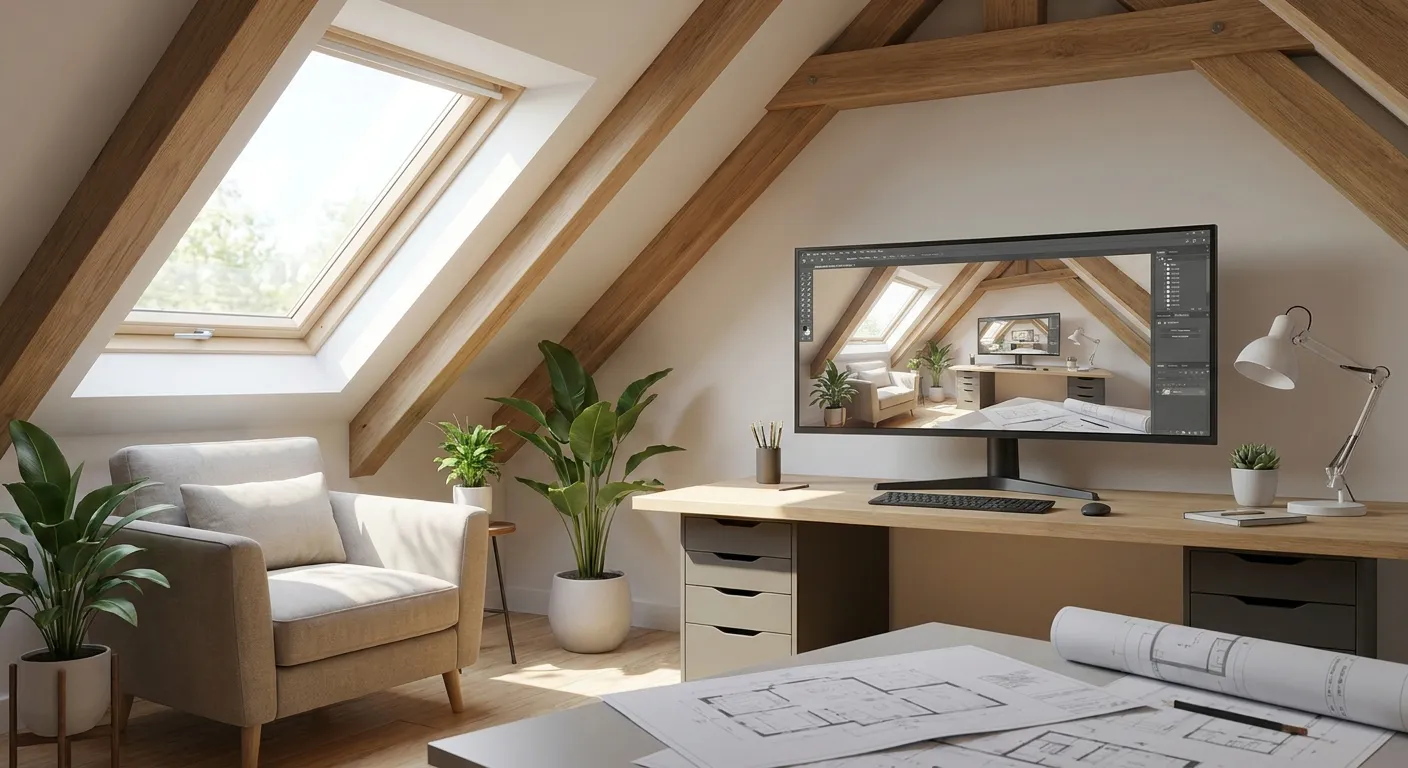
Attic Conversion
Generate client-ready attic conversion concepts from a screenshot, model view, or hand sketch.
How space-specific rendering works
The source model can come from any 3D software: SketchUp, Revit, Rhino, Blender, ArchiCAD. Take a screenshot of the 3D view, crop out the interface, upload it, and choose interior or exterior with a lighting condition. The AI keeps your camera angle and the geometry you framed, and generates materials, light, and finish on top.
Each space type asks the render to be convincing about something different. Kitchens live or die on cabinet, countertop, and appliance material fidelity. Living rooms depend on furniture layout, natural light direction, and textiles reading as fabric. Below-grade and attic rooms need accurate ceiling height and the limited, directional daylight those spaces actually get. A render that floods them with even light looks wrong immediately. Naming these specifics in the prompt is what moves a render from generic to something a client believes.
For early concept work, a rough massing screenshot and a short prompt are enough to get a shareable image into the first client meeting. For sign-off, a more detailed model and a precise prompt keep the render close to what will actually be built. Renovation projects benefit from rendering the same camera angle before and after, so the client sees the change in place rather than as two unrelated images.
Each use-case page covers the prompt tips and example inputs specific to that space. Pricing is pay-as-you-go with a free plan, so you can render your own model screenshots before committing.
Common questions
- Can I render a space that is not listed here?
- Yes. The use cases here are common examples, not a fixed list. PromptRender renders any interior or exterior space from a 3D model screenshot: offices, retail, hospitality, healthcare, and more. Describe the space in the prompt and the render adapts.
- How do I get materials right in the render?
- Name them specifically in the prompt. "Brushed brass fixtures, matte white quartz counter, walnut cabinets" produces a far more predictable kitchen render than "modern kitchen". The AI follows concrete material descriptions closely.
- Does it work for renovation before-and-after comparisons?
- Yes. Render the existing space from a photo or screenshot, then render the proposed design from the same camera angle. Presenting both at the same viewpoint is what makes a renovation proposal read clearly to a client.