Turn SketchUp Screenshots into Photorealistic Renders with AI
Upload any SketchUp screenshot (early mass models, basic-textured designs, or fully detailed scenes) and get a photorealistic architectural render in seconds. No V-Ray, no Enscape, no learning curve. Works with every SketchUp version.
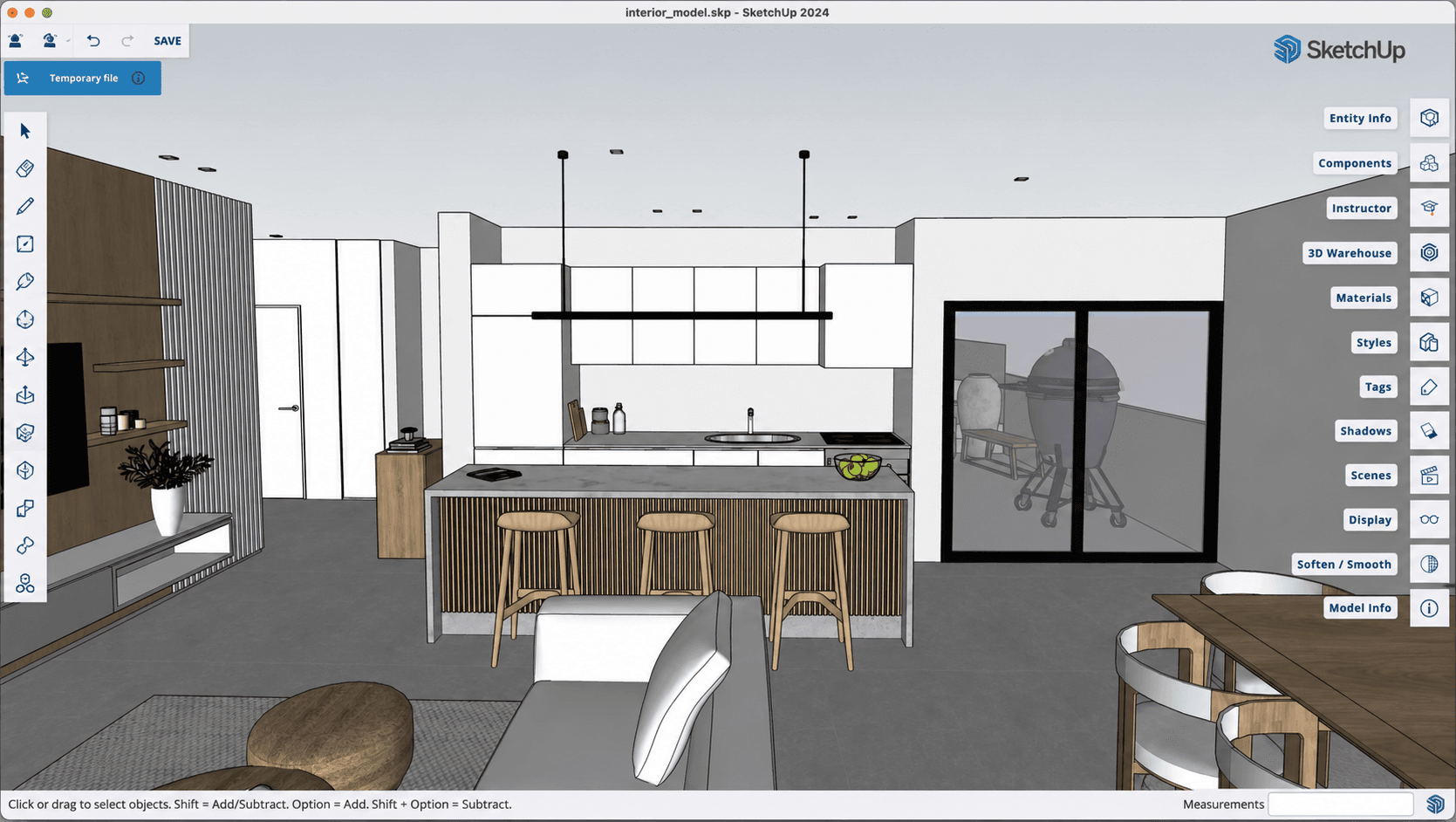
Step 1
Take a Screenshot in SketchUp
Position your camera in SketchUp and take a screenshot of your 3D viewport. No export or plugin required. Any screenshot tool works.
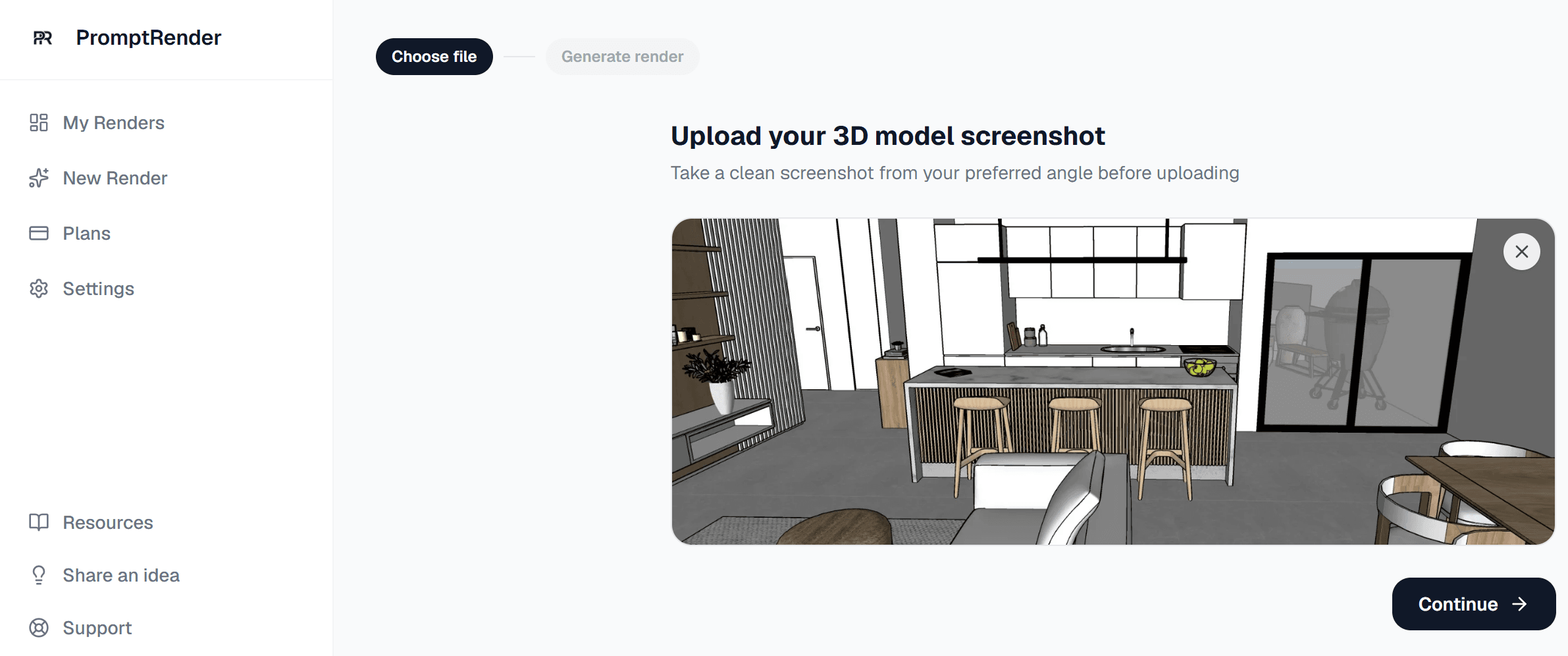
Step 2
Upload and Describe Your Vision
Upload the screenshot to PromptRender, select exterior or interior, choose lighting conditions, and add an optional prompt to guide the render style.
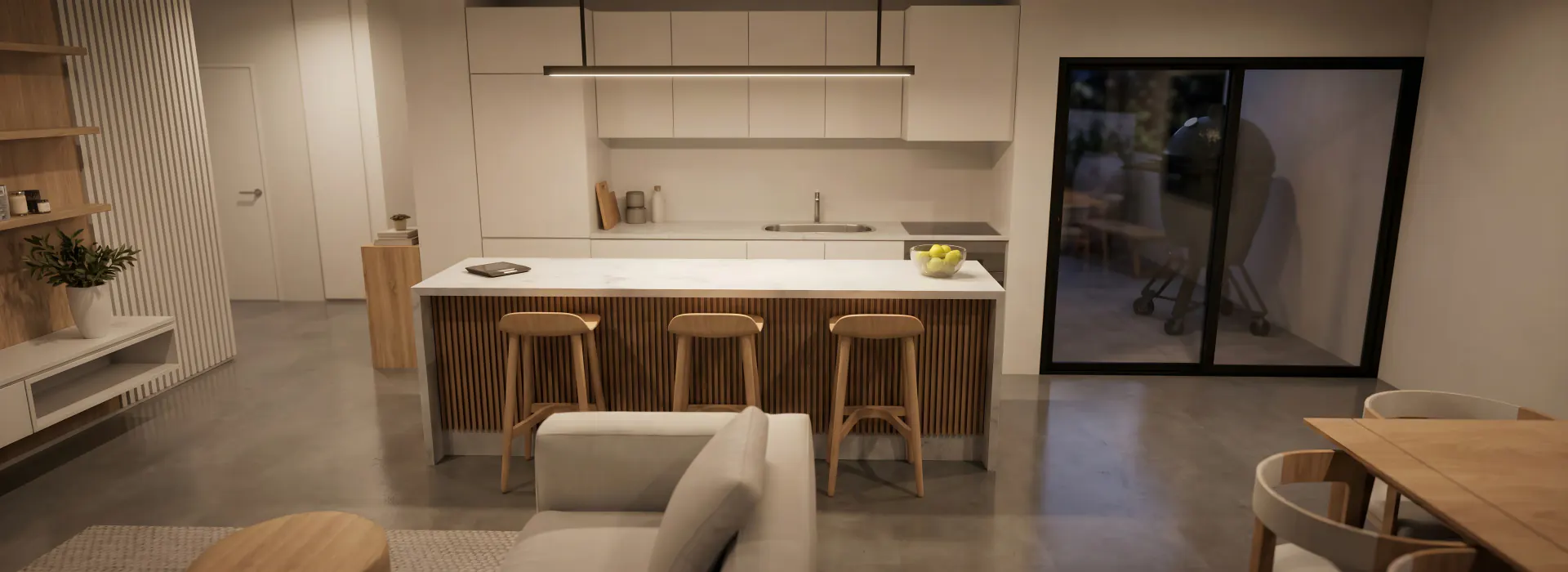
Step 3
Download Your 4K Render
Receive a photorealistic architectural render in 4K within seconds. Your original SketchUp camera angle is preserved exactly as you set it.
Why Architects Use PromptRender with SketchUp
No SketchUp Rendering Plugins Needed
PromptRender works from a simple screenshot. No V-Ray, Enscape, or SU Podium subscription required: just your existing SketchUp license.
Camera Angle Preserved Automatically
Our AI reads the perspective and composition of your SketchUp screenshot and applies photorealistic rendering while keeping your exact viewpoint.
Works With Any SketchUp Version
From SketchUp Free to SketchUp Pro 2024: if you can take a screenshot of your 3D viewport, you can use PromptRender.
Exterior and Interior Scenes
Works for building facades, site views, interior rooms, and any other architectural scene you model in SketchUp.
4K Resolution, Ready for Clients
Every render outputs at 4K resolution: sharp enough for print, client presentations, and portfolio submissions.
Edit the Render with AI Prompts
Not satisfied with the result? Describe what you want to change and the AI adjusts it instantly, without re-generating from scratch.
Does PromptRender Work with SketchUp Display Styles?
Many SketchUp users rely on display styles (wireframe, monochrome, sketchy edges, or hidden line) for design exploration and presentations. A common question is whether these non-photorealistic outputs work with PromptRender. The answer is yes. PromptRender reads the geometry and spatial composition from any SketchUp screenshot, regardless of which display style is active. Whether you're working in wireframe to expose structure, monochrome for a clean conceptual view, or sketchy edges for a hand-drawn aesthetic, the AI interprets the underlying form and generates a photorealistic render from that composition. You don't need to switch your SketchUp style before capturing: just take your screenshot and upload it as-is. The geometry and perspective are all the AI needs.
AI Rendering at Every Stage of Your SketchUp Workflow
Whether you're exploring form early in a project or preparing final client deliverables, PromptRender fits into your SketchUp workflow at every stage, without requiring additional software or rendering expertise.
From Mass Model to Concept Render
Early in the design process, your SketchUp model may be little more than massed volumes: no materials, no detail. PromptRender reads the underlying geometry and generates a concept-quality render that communicates scale, proportion, and spatial intent. You can show clients a convincing vision of a project before the design is resolved, without investing hours in setup.
From Basic Textures to Photorealistic Output
When you've applied basic materials in SketchUp (flat colors, simple textures), PromptRender enhances them into photorealistic finishes. The AI interprets the material type (wood, concrete, glass, stone) and renders it with physical accuracy, depth, and reflectance. A simple white-box model becomes a fully finished architectural image.
Edit Renders Without Changing Your Model
Generated a render but want to change the facade material or add landscaping? Use PromptRender's edit feature to describe the change in plain text. The AI applies targeted edits to the render (adjusting materials, lighting, or atmosphere) without touching your SketchUp model or requiring you to re-render from scratch.
Multiple Camera Angles, Multiple Style Variations
Each camera position in SketchUp produces a distinct render composition. Because renders take seconds, it's worth generating three or four angles and choosing the strongest for your presentation. You can also generate style variations from a single model view. Test different moods, material palettes, or lighting conditions before committing to a direction.
Frequently Asked Questions
Does PromptRender work with all SketchUp versions?
Yes. PromptRender works with screenshots from any SketchUp version: Free, Go, Pro, or Studio. You don't need any specific plugin or export format.
Do I need to export my SketchUp model?
No. Simply take a screenshot of your SketchUp 3D viewport and upload it to PromptRender. The AI processes the screenshot directly. No .skp file upload required.
Will the AI preserve my SketchUp camera angle?
Yes. Our AI analyzes the perspective, depth, and spatial geometry in your screenshot and generates a photorealistic render from the exact same viewpoint.
Can I render both SketchUp exteriors and interiors?
Yes. PromptRender supports both exterior and interior scenes. Select the scene type when uploading and choose your preferred lighting condition: sunrise, noon, sunset, or night.
What are the commercial usage rights for renders I create?
All renders generated with PromptRender are yours to use commercially. You can include them in client presentations, planning applications, competition entries, marketing materials, and professional portfolios without restriction.
Is my SketchUp data and project information kept private?
Yes. The screenshots you upload are processed solely to generate your render. They are not shared with third parties or used to train AI models. Your design data remains confidential.
Is there a free trial available?
Yes. Every PromptRender account starts with one free render and one free edit: no credit card required. You can complete the full workflow on your own SketchUp screenshot before choosing a paid plan.
Can architectural teams use PromptRender collaboratively?
Yes. PromptRender supports team use, allowing multiple architects in the same practice to render projects and maintain consistent presentation quality across the studio.
Does PromptRender work with software other than SketchUp?
Yes. PromptRender works with screenshots from any 3D modeling tool: including Revit, Rhino, Blender, ArchiCAD, AutoCAD, Vectorworks, and 3ds Max. If you can take a screenshot of your 3D viewport, you can generate a photorealistic render.
Start Rendering Your SketchUp Models
Try PromptRender free. Includes 1 render and 1 edit, no credit card required.
No credit card required for the free plan.