AI Kitchen Design Rendering: Photorealistic Results in Seconds
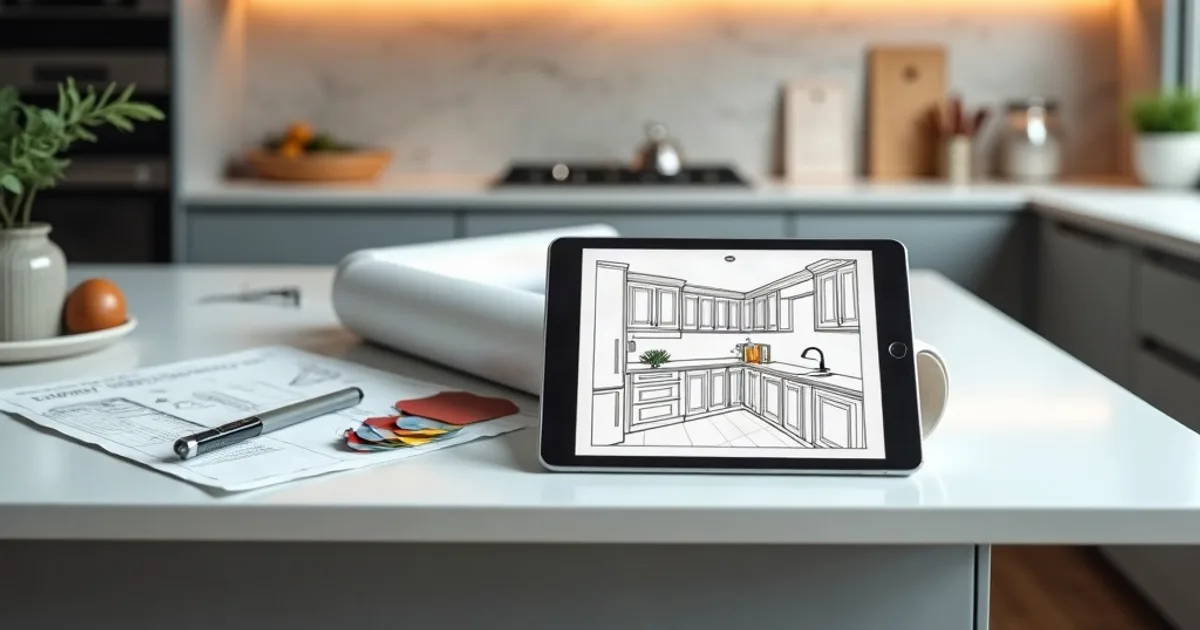
Design and visualize your kitchen with AI before a renovation or client presentation. Upload a screenshot of your 3D model and get a photorealistic render in seconds. Cabinet finishes, countertop materials, appliance details, and lighting scenarios, all from your design, no plugins required.
- How it works: Model Your Kitchen and Take a Screenshot → Upload and Set Interior Options → Download Your 4K Kitchen Render.
- Key benefits: Cabinet Finish and Color Accuracy, Countertop Material Rendering, Appliance and Hardware Details.
- What 3D software works for AI kitchen renders? PromptRender works with viewport screenshots from any 3D software: SketchUp, Revit, Blender, AutoCAD, Vectorworks, ArchiCAD, 3ds Max, and others. No plugin or file export required.
How it works
- Model Your Kitchen and Take a Screenshot — Set up your kitchen layout in any 3D software (SketchUp, Revit, Blender, AutoCAD, or others), position the camera, and take a viewport screenshot.
- Upload and Set Interior Options — Upload the screenshot to PromptRender, select 'Interior', choose a lighting mode (bright daylight, warm afternoon, or evening) and optionally describe cabinet finishes, countertops, and materials.
- Download Your 4K Kitchen Render — Receive a photorealistic kitchen design render in 4K within seconds. Cabinet layout, island proportions, and camera angle are preserved exactly as modeled.
Why Designers Use PromptRender for Kitchen Renders
Cabinet Finish and Color Accuracy
Specify wood species, paint color, or lacquer finish in the text prompt: 'dark walnut veneer cabinets', 'matte white shaker doors', 'natural oak handleless'. The AI applies the finish throughout.
Countertop Material Rendering
Describe countertop materials in detail ('Calacatta marble', 'dark grey quartz', 'concrete worktop') and the AI renders accurate surface texture and reflectivity.
Appliance and Hardware Details
The AI renders handles, faucets, and appliance faces with photorealistic detail: stainless steel, matte black, or brushed brass finishes.
Multiple Lighting Scenarios
Compare bright morning kitchen light vs. warm evening ambiance: generate multiple lighting variants from the same model to help clients decide on finishes and atmosphere.
Works With Any 3D Software
SketchUp, Revit, Blender, AutoCAD, Vectorworks, ArchiCAD, 3ds Max: if you can take a viewport screenshot of your kitchen model, PromptRender can render it.
4K for Contractor and Client Review
Every render outputs at 4K: sharp enough for contractor briefings, printed kitchen specifications, and full-screen client presentations.
Modern, Minimalist, and Industrial Kitchen Styles
Describe the desired style in the prompt ("modern kitchen with matte black island", "Scandinavian kitchen in white and oak", "industrial kitchen with steel shelving") and the AI renders the corresponding aesthetic.
Perfect for Presenting Kitchen Renovations
Show clients or contractors what the renovated kitchen will look like before work begins. Generate multiple design variants from the same model to compare finish, color, and layout options.
No Design Experience or Specialist Software Needed
No need to learn V-Ray, Lumion, or any rendering software. If you can take a viewport screenshot of your 3D model, PromptRender does the rest. Free plan available. No credit card required.
AI Kitchen Design for Any Style and Project
Whether you are designing a modern kitchen with clean lines, a minimalist handleless kitchen, an industrial kitchen with steel and concrete, or a Scandinavian kitchen in white and natural wood, PromptRender generates the photorealistic render from your 3D model in seconds. No interior design experience required, no specialized software to install. It is the ideal tool for architects and interior designers presenting proposals to clients, as well as homeowners planning a kitchen renovation who want to visualize the result before committing. Unlike traditional rendering, which can take hours and require expensive software like V-Ray or Lumion, PromptRender converts a viewport screenshot from SketchUp, Revit, or Blender into a photorealistic architectural render in under 30 seconds.
Frequently Asked Questions
What 3D software works for AI kitchen renders?
PromptRender works with viewport screenshots from any 3D software: SketchUp, Revit, Blender, AutoCAD, Vectorworks, ArchiCAD, 3ds Max, and others. No plugin or file export required.
Can I specify cabinet colors and countertop materials in the render?
Yes. Use the optional text prompt to describe specific finishes: 'sage green shaker cabinets', 'white marble island top', 'brushed brass tap'. The AI incorporates these details into the photorealistic output.
How do I show different kitchen lighting scenarios to a client?
Upload the same screenshot multiple times with different lighting modes (bright natural daylight, warm afternoon, or evening) to generate a set of renders showing the same kitchen at different times of day.
Can PromptRender render open-plan kitchen-dining areas?
Yes. PromptRender works with any interior scene, including open-plan layouts. The AI maintains consistent lighting and material continuity across the full space captured in your screenshot.
Is AI kitchen rendering free?
Yes. PromptRender has a free plan that lets you generate kitchen renders without a credit card. For projects requiring higher render volume or 4K output, paid plans are available.
Can I use AI to plan a kitchen renovation?
Yes. Upload a screenshot of your current kitchen as a starting point and generate visualizations showing different finishes, colors, or layouts. It is a fast way to explore options before committing to a renovation.
What kitchen styles can PromptRender generate?
Any style you can describe in text: modern kitchen, minimalist kitchen, industrial kitchen, Scandinavian or Nordic kitchen, classic kitchen, rustic kitchen, and more. The AI incorporates the specified style alongside the materials and finishes you describe in the prompt.
How long does a kitchen render take to generate?
Most renders are generated in under 30 seconds. The exact time depends on scene complexity and the selected generation mode, but never the hours required by traditional rendering workflows.