AI Living Room Rendering: Photorealistic Results in Seconds
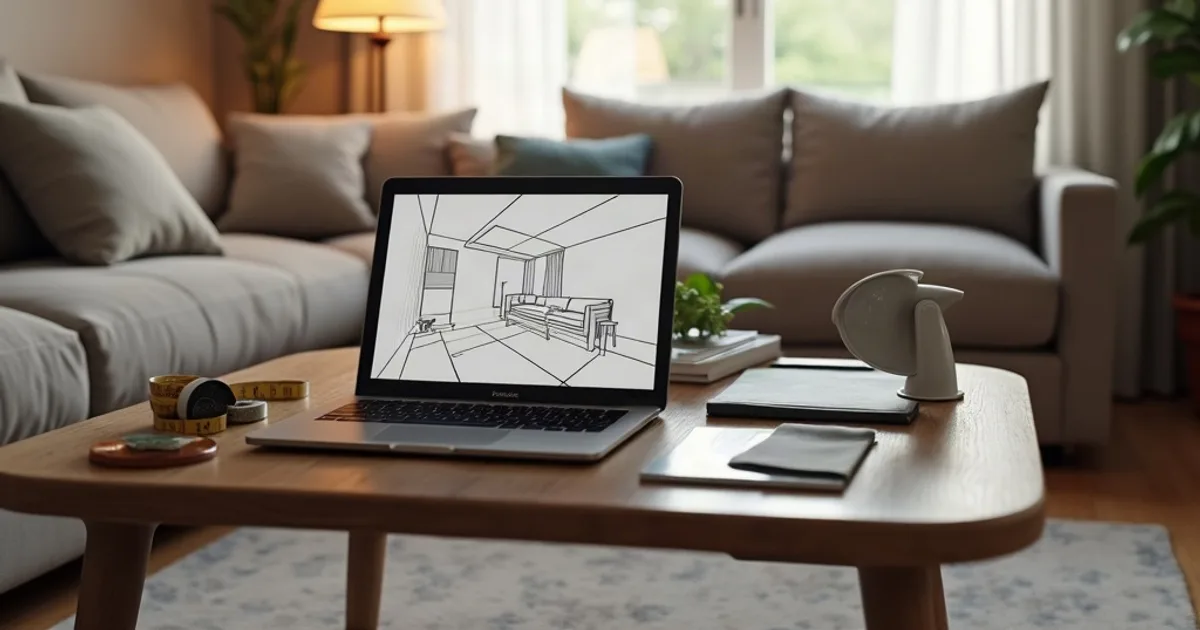
Upload a screenshot of your living room 3D model and get a photorealistic render in seconds. Accurate furniture scale, natural window light, and photorealistic material finishes, from any 3D software.
- How it works: Model Your Living Room and Take a Screenshot → Upload and Set Interior Options → Download Your 4K Living Room Render.
- Key benefits: Accurate Furniture Scale and Proportion, Natural Window Lighting, Material and Textile Control.
- What 3D software can I use for AI living room renders? PromptRender works with viewport screenshots from any 3D software: SketchUp, Revit, Blender, AutoCAD, Vectorworks, ArchiCAD, 3ds Max, and others. No plugin or export format required.
How it works
- Model Your Living Room and Take a Screenshot — Set up your living room scene in any 3D software (SketchUp, Revit, Blender, or others), position the camera, and take a viewport screenshot.
- Upload and Set Interior Options — Upload the screenshot to PromptRender, select 'Interior', choose a lighting mode (natural daylight, warm afternoon, or evening) and optionally describe materials and style.
- Download Your 4K Living Room Render — Receive a photorealistic living room render in 4K within seconds. Furniture layout, proportions, and camera angle are preserved exactly as modeled.
Why Designers Use PromptRender for Living Room Renders
Accurate Furniture Scale and Proportion
The AI preserves the exact scale, placement, and spatial relationships from your 3D model: sofas, coffee tables, shelving, and rugs all render in correct proportion.
Natural Window Lighting
Choose from morning light, afternoon sun, golden hour, or evening warmth to show your living room design in the most compelling light for each client.
Material and Textile Control
Describe sofa upholstery, rug patterns, curtain fabrics, and wall finishes in a text prompt: 'linen sofa', 'herringbone oak floor', 'off-white textured walls'.
Works With Any 3D Software
SketchUp, Revit, Blender, AutoCAD, Vectorworks, ArchiCAD, 3ds Max: if you can take a viewport screenshot of your living room model, PromptRender can render it.
4K Resolution for Print and Screen
Every render outputs at 4K: sharp enough for printed presentation boards, portfolio submissions, and full-screen client displays.
Multiple Variations Per Scene
Generate several lighting and style variations from the same screenshot: give clients options without re-modeling or re-uploading.
Frequently Asked Questions
What 3D software can I use for AI living room renders?
PromptRender works with viewport screenshots from any 3D software: SketchUp, Revit, Blender, AutoCAD, Vectorworks, ArchiCAD, 3ds Max, and others. No plugin or export format required.
Can I specify sofa fabric, rug, and wall material in the render?
Yes. Use the optional text prompt to describe specific materials and finishes: 'velvet sofa in deep green', 'Persian rug', 'plaster walls with warm undertone'. The AI incorporates these into the render.
What lighting options are available for living room renders?
PromptRender supports natural daylight, warm afternoon light, golden hour, and evening (artificial light) modes. Select the mode when uploading and add lighting details in the text prompt for more control.
How realistic are PromptRender living room renders for client presentations?
PromptRender outputs 4K photorealistic renders suitable for client presentations, printed boards, and portfolio use. The AI preserves your camera angle and room layout, applying photorealistic materials and lighting on top.