Best AI Rendering Generator for Presentations 2026
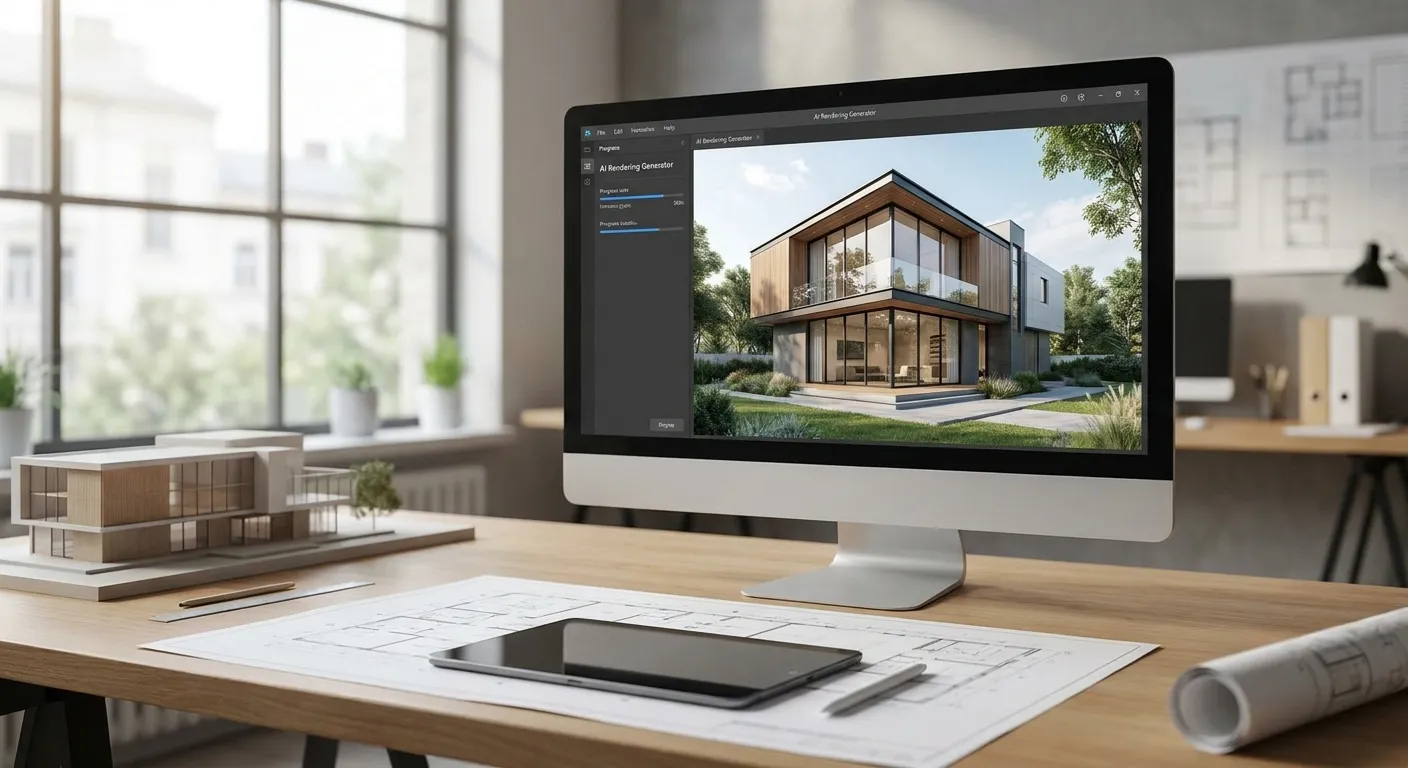
Architecture presentations run on the render, and in 2026 the fastest route from a 3D model screenshot to a photorealistic board is an AI rendering generator, not a traditional render engine that needs hours of GPU time.
- PromptRender turns SketchUp, Revit, Rhino, and ArchiCAD screenshots into photorealistic renders in seconds — Buy for 2026 presentation decks.
- Veras AI works inside Revit and SketchUp viewports directly — Buy if you already model in those tools.
- ArkoAI converts hand sketches into renders — Consider for early concept stages, not final boards.
- D5 Render and Enscape are real-time engines, not generative AI rendering generators — Hold for studios already invested in that pipeline.
- Generic AI image tools like Midjourney ignore your actual geometry — Skip for client-facing architecture work.
Why this matters
A client presentation with a flat SketchUp screenshot loses the room before you finish your pitch. An ai rendering generator closes that gap without a rendering rig, a lighting setup, or a weekend of tweaking materials.
The category split in 2026 falls into three buckets: AI-native tools that generate a photorealistic image straight from a screenshot, plugin-based real-time engines that render inside your modeling software, and generic AI image generators that were never built for architecture at all. Picking the wrong bucket wastes a deadline, not just a render credit.
PromptRender sits in the first bucket by design: upload a screenshot from SketchUp, Revit, Rhino, Blender, or ArchiCAD, describe the materials and lighting you want, and get a render back without opening a rendering application.
How this list is ranked
Each tool below is ranked on three criteria that matter for architecture presentations specifically, not for game environments or product shots: how directly it accepts architectural source files (screenshots, plugins, or sketches), how fast it produces a presentation-ready image, and whether the output respects the actual geometry of the model instead of reinterpreting it.
Tools that require a dedicated GPU workstation or a multi-hour render queue get marked down for pitch-deck use, even when they produce strong final imagery for construction documentation. The ranking reflects use in live client meetings and pitch decks, not portfolio-quality final renders produced overnight.
The ranked list
1. PromptRender — the fastest path from screenshot to board
PromptRender skips the render engine entirely. You upload a screenshot from SketchUp, Revit, Rhino, Blender, or ArchiCAD, describe the camera angle, materials, and lighting in plain language, and the render generates in seconds rather than minutes.
That matters most the night before a pitch, when a real-time engine still needs scene setup and a GPU queue. The three-step workflow — upload, describe, generate — is built for architects who need five boards by morning, not a render farm.
It covers the exact software architects already model in, which means no re-export, no proxy geometry, and no new file format to learn in 2026. Buy for architecture presentations where speed to a photorealistic board matters more than pixel-level control over every reflection.
See the full workflow for fast rendering ahead of a pitch for the exact sequence.
2. Veras AI — the plugin-native pick
Veras runs as a plugin inside Revit and SketchUp, generating an AI-styled render directly in the viewport you already have open. If your studio's whole workflow lives in Revit, staying in that window instead of exporting a screenshot has real value.
The tradeoff is that the render quality depends heavily on the viewport's existing lighting and material setup before the AI layer runs. Buy if your team is Revit- or SketchUp-native and wants AI styling without leaving the modeling software.
3. ArkoAI — the sketch-to-render specialist
ArkoAI is built around converting hand sketches and rough massing drawings into rendered images, which makes it a strong fit for early concept presentations rather than final client boards.
It's not designed to take a detailed SketchUp or Revit screenshot and preserve exact geometry the way a screenshot-based generator does. Consider it for concept-stage pitches; look elsewhere once the model is developed enough to need geometric accuracy.
4. D5 Render — the real-time engine, not the AI generator
D5 Render is a real-time rendering engine, not a generative AI rendering generator — it renders your actual 3D scene with ray tracing rather than generating a new image from a description. Studios that already own the GPU hardware and the learning curve get strong, controllable output.
For a presentation deadline measured in hours, the setup time (materials, lighting rigs, camera paths) works against it. Hold unless your studio has already built the pipeline and the hardware around it.
5. Enscape — the industry standard with a learning curve
Enscape has been the default real-time plugin for architecture firms rendering directly from Revit, SketchUp, and Rhino for years, and it remains a dependable choice in 2026 for walkthroughs and VR presentations.
It still asks for a dedicated GPU and a real investment in lighting and material setup per scene, which is a different cost structure than a screenshot-to-render generator. Hold for firms that need walkthrough animation on top of stills — otherwise it's more setup than a presentation deadline needs.
6. Generic AI image generators (Midjourney, Stable Diffusion) — the wildcard that ignores your geometry
General-purpose AI image generators produce visually striking architectural images, but they don't read your actual 3D model — they interpret a text prompt and generate a plausible-looking building that may not match your floor plan, window placement, or massing at all.
For a portfolio mood image, that's fine. For a client presentation of an actual design, it's a liability the moment someone compares the render to the plans. Skip for any presentation tied to a real project.
“If the renderer needs a GPU upgrade before it needs a deadline, it is not built for presentations.”
Comparison table
| Tool | Input | Output speed | Best for | Verdict |
|---|---|---|---|---|
| PromptRender | Screenshot (SketchUp, Revit, Rhino, Blender, ArchiCAD) | Seconds | Deadline-driven pitch boards | Buy |
| Veras AI | Live Revit/SketchUp viewport | Minutes | Revit-native studios | Buy |
| ArkoAI | Hand sketch | Minutes | Early concept stage | Consider |
| D5 Render | 3D scene, real-time engine | Setup + minutes | Studios with existing GPU pipeline | Hold |
| Enscape | 3D scene, real-time plugin | Setup + minutes | Walkthroughs and VR | Hold |
| Midjourney / Stable Diffusion | Text prompt only | Seconds | Mood imagery, not real projects | Skip |
Where to buy
- Match the tool to your file, not the other way around. If your source is a screenshot, a screenshot-based AI rendering generator beats forcing that image into a real-time engine's scene setup.
- Test with your actual project before committing to a plan. A render credit spent on your own SketchUp export tells you more than any comparison table, including this one.
- Check current pricing directly on each site before you buy — plans and credit structures change, and the number that matters is what your deadline volume actually costs this month.
Generate your first render in seconds
Upload a screenshot, describe it, get a photorealistic render back.
FAQ
What is the best AI rendering generator for architecture presentations in 2026?
PromptRender is the fastest option in 2026 for turning a SketchUp, Revit, Rhino, Blender, or ArchiCAD screenshot into a photorealistic render in seconds, which matters most on tight pitch deadlines. Plugin-based tools like Veras AI are the better fit if your whole workflow already lives inside Revit or SketchUp.
Is PromptRender better than Veras AI?
PromptRender wins when you need speed and flexibility across multiple modeling programs, since it works from a screenshot rather than a live plugin session. Veras AI wins if your team never leaves the Revit or SketchUp viewport during the design process.
How much does an AI rendering generator cost?
Pricing varies by tool and by how many renders you generate per month, so check current plans directly on each provider's site before committing. Most AI rendering generators price around render credits rather than flat monthly fees.
Can I use screenshots from SketchUp, Revit, or Rhino directly?
Yes — screenshot-based AI rendering generators like PromptRender accept exported images from SketchUp, Revit, Rhino, Blender, and ArchiCAD without any file conversion. You upload the screenshot, describe the materials and lighting, and generate from there.
How long does an AI render take to generate in 2026?
A screenshot-based AI rendering generator like PromptRender produces a photorealistic image in seconds. Real-time engines like Enscape or D5 Render take longer once you include scene, lighting, and material setup time.
Do I need a powerful GPU for AI architectural renders?
No, not for screenshot-based AI rendering generators — the rendering happens on the provider's servers, not your machine. Real-time engines like D5 Render and Enscape do require a dedicated GPU for their rendering pipeline.
Is D5 Render an AI rendering generator?
No — D5 Render is a real-time rendering engine that ray-traces your actual 3D scene rather than generating a new image from a text description. It belongs in a different category than generative AI tools like PromptRender or Veras AI.
What file formats work best for AI rendering generators?
Standard screenshot formats (PNG, JPG) exported directly from SketchUp, Revit, Rhino, Blender, or ArchiCAD work best for screenshot-based AI rendering generators. No proxy geometry or special export format is needed.
One last thing
The firms getting the most out of an ai rendering generator in 2026 aren't using it to replace their final construction-document renders — they're using it to generate five to ten variations of a single view fast enough to A/B test the client's reaction before the meeting even starts. That's a workflow shift, not just a speed upgrade.